LeaderBoard

How to: Call an AIF Web Service from C# to Create a Sales Order - Sample Code

using System;

using System.Collections.Generic;

using System.Linq;

using System.Text;

using ConsumeSalesOrderService.SalesOrder;

// Add a using statement for the service reference.

using System.Collections;

namespace ConsumeSalesOrderService

{

    class Program

    {

        static void Main(string[] args)

        {

            // Instantiate an instance of the service client class.

            SalesOrderService proxy = new SalesOrderService();

            // Create an instance of the document class.

            AxdSalesOrder salesOrder = new AxdSalesOrder();

            // Create instances of the entities that are used in the service and

            // set the needed fields on those entities.

            AxdEntity_SalesTable salesTable = new AxdEntity_SalesTable();

            salesTable.CurrencyCode = "USD";

            salesTable.CustAccount = "1101";

            salesTable.DeliveryDate = Convert.ToDateTime("2/14/2010");

            salesTable.Payment = "N060";

            salesTable.PurchOrderFormNum = "PO";

            AxdEntity_SalesLine salesLine = new AxdEntity_SalesLine();

            salesLine.ItemId = "1001";

            salesLine.SalesQty = 88;

            salesLine.SalesUnit = "ea";

            AxdEntity_InventDim inventDim = new AxdEntity_InventDim();

            inventDim.configId = "HD";

            inventDim.InventColorId = "01";

            inventDim.InventSizeId = "42";

            // Add the sub-entity instances to their parent entities as an array

            // of the sub-entity type.

            salesLine.InventDim = new AxdEntity_InventDim[1] { inventDim };

            salesTable.SalesLine = new AxdEntity_SalesLine[1] { salesLine };

            salesOrder.SalesTable = new AxdEntity_SalesTable[1] { salesTable };

            try

            {

                // Call the create method on the service passing in the document.

                EntityKey[] returnedSalesOrderEntityKey = proxy.create(salesOrder);

                // The create method returns an EntityKey which contains the ID of the sales order.

                EntityKey returnedSalesOrder = (EntityKey)returnedSalesOrderEntityKey.GetValue(0);

                Console.WriteLine("The sales order created has a Sales ID of " + returnedSalesOrder.KeyData[0].Value);

                Console.ReadLine();

            }

            catch (Exception e)

            {

                Console.WriteLine(e.ToString());

                Console.ReadLine();

            }

        }

    }

}

Microsoft Dynamics AX 2012 Data Import/Export Framework standalone version for AX 2012 R2 without installing full CU7

We have recently released the new version for Microsoft Dynamics AX 2012 Data Import/Export Framework as part of Microsoft Dynamics AX 2012 R2 CU7. We received lot of requests to get the new version for AX 2012 R2 (Base R2 and/or CU1, CU6, hotfixes) without taking full CU7. To make this happen, we have released an application hotfix for DIXF which can be installed on AX 2012 R2 (Base R2 and/or CU1, CU6, hotfixes).  The hotfix does not contain the binary files for the Data Import/Export Framework. You must install the binary files for the Data Import/Export Framework by using the CU7 update installer.

Application Components

The application hotfix contains the application files for the version of the Data Import/Export Framework that was released with cumulative update 7.

Important: This hotfix does not contain the binary files for the Data Import/Export Framework. You must install the binary files for the Data Import/Export Framework by using the CU7 update installer.

Download:

Application files for the Data Import/Export Framework, cumulative update 7 version

Instructions:

To install the Data Import/Export Framework:

  1. Install this hotfix using the installer that it ships with.
  2. Complete the software update checklist.

Binary Components

You must install the binary files for the Data Import/Export Framework by using the CU7 update installer.

Download:

Microsoft Dynamics AX 2012 R2 Cumulative Update 7 (KB2885603 )

Instructions:

Install Data import export framework Client, AOS and Service components.

http://technet.microsoft.com/EN-US/library/hh538446.aspx%23InstallCU7

CU 7: Install the Data Import/Export Framework (binary)


As of cumulative update 7, you can install the Data Import/Export Framework from the update installer. For an overview of the Data Import/Export Framework, see Data import/export framework user guide ( (DIXF, DMF).

Caution

If you have previously installed the Data Import/Export Framework from InformationSource, you must fully uninstall it before installing again with cumulative update 7 for Microsoft Dynamics AX 2012 R2. This includes removing all binary files by using Add/Remove Programs, and the uninstalling Data Import/Export Framework model. For more information see How to: Remove (Uninstall) a Model.

  1. Browse to the location where you extracted the files for the update, and then double-click AxUpdate.exe.
  2. On the Welcome to Microsoft Dynamics AX Update Setup page, click Next.
  3. On the Software license terms page, review the license terms, and then click Accept and continue.
  4. On the Select packages to update page, select the components of the Data Import/Export Framework that can be installed on the local computer, and then click Next.
  5. The prerequisite validation check runs. Address any issues that the prerequisite check finds outside the installer, and then restart the validation check. When all prerequisites have been found, click Next.
  6. If you are installing on the computer that runs Microsoft SQL Server Integration Services, specify a service account and the version of SQL Server that is running. We recommend that you use the AOS service account.

–or–

If you are installing on the AOS computer, specify the name of the server that is running SQL Server Integration Services.

  1. On the Review updates to be installed page, click Next.
  2. On the Ready to install page, review the summary, select the Automatically restart the AOS instances after installation check box, and then click Install.
  3. After the installation is completed, verify that the updates were installed successfully, and then exit the wizard.


Imparted from here

Step by Step Guide How to Install Dynamics AX 2012 - Part 1


How to Install and Configure Dynamics AX 2012 Components
Over the past few weeks, I was involved in installing and configuring Dynamics AX 2012 Components on couple of machines running Server 2008 and Windows 7 Enterprise O/S.

Thought I will share my experience here in a series of posts covering  installation of all major components of AX 2012 - Database, AOS, Client, EP Components, Sharepoint 2010, Reporting Services and Business Intelligence.

Overall Installation Experience/Highlights: (Good)

a. I can say compared to my previous experiences with installation of Dynamics AX 4.0 and 2009, Dynamics AX2012 is less error-prone and satisfactory even though, the number of Pre-Requisites to be installed is quite a significant one in 2012

b. Validate Pre-Requisite Tool is quite handy which helps one to prepare for installation so that one is not taken by surprise when he/she performs the actual installation of components
c. Summary Report which comes up at the end is quite cool and user-friendly.

Considerations:
a. Requires more computing power in terms of RAM (As per System Requirements Guide it says 4 GB is the minimum). And from my personal experience, I have seen that AOS service (AX32serv.exe at it's peak, especially when you start the service and bring up the AX Client first time, it goes up close to 1 GB).

b. I also tried the fully loaded image from PartnerSource  on a machine which had overall 6GB RAM, allocated 4GB to the VM, but still it was crawling. It took me ages to bring up the AOS Service.

c. Since now the AOD is no longer file based and the models reside in SQL Server, you also need to plan ahead for the disk capacity for your SQL boxes. Standard AX database (Application) along with the model database (AOD) bulks up to 3 GB approx and if you want Contoso DB (Demo Data loaded) you should free up atleast 10 GB.
Ok, Now I will jump start the installation process starting with installation of Database, AOS and Client Components. I had captured the screenshots along the way as this will help me and my peers when we setup DEV, Test, Pre-Prod and Prod Environments.

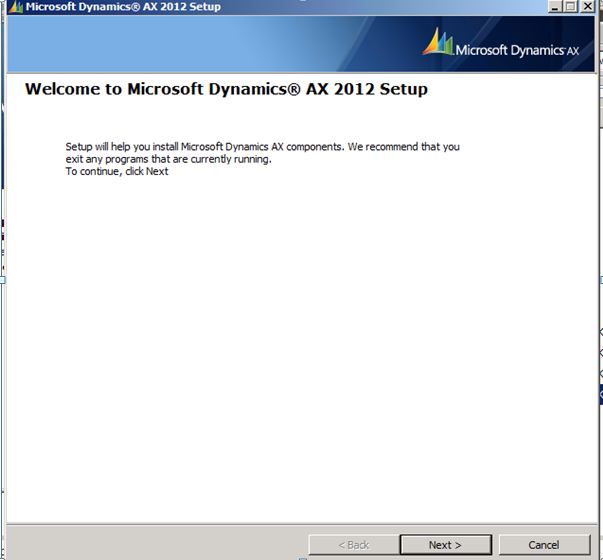
Initial Setup Screen


Pre-Requisite Validation Utility
Note - Here, I'm just installing the components which are checked below: Database, AOS, Client Components, Debugger (My favorite ;-) and Management Utilities
Tip - I would suggest from my personal experience of installing AX, even though Single-Computer Installation sounds easy and quick but we don't get the proper control here, so I prefer Custom Installation and choose my components, easy to troubleshoot and learn as we go

This screen shows you the list of validation errors which means you need to install the base pre-requisites software before you proceed.
The first error shown below is about the SQL Server Full Text Search is not installed or the service is not running

Launch SQL Server Setup and Install Full-Text Search component

Next, comes the Report Viewer Control. You need to download it from herehttp://www.microsoft.com/download/en/details.aspx?id=6442

Some other pre-requisites which needs to be configured and installed are as follows:


Please Note, as per the Operating System whether it's Server 2008 or Win 7, it might ask you for some other pre-requisites as well, so I would suggest you run the pre-requisite validator and please don't go by the assumption that the above  links are the ONLY pre-requisites required.
.

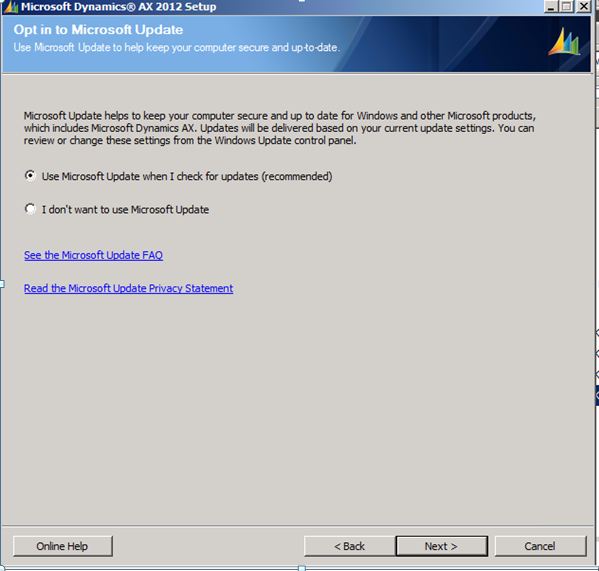
Once the Pre-Requisites are installed successfully, you can kick start the Installation

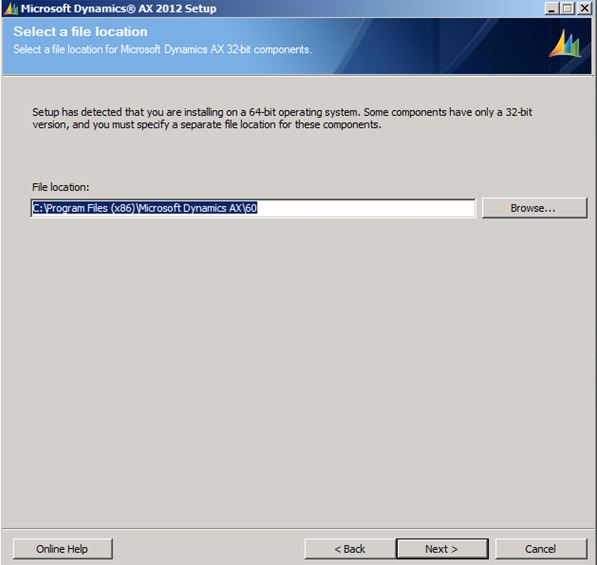
Tip - You can change the location here

Select the Components you want to install, based on your implementation topology you might want to install different components on different boxes. As I'm setting up a Sandbox at the moment, I just installed everything in one box

Didn't thought of much experimenting with Themes so left it as it is.

You can change the database names at this step below if you want to.

Key in the ports for AOS and Services
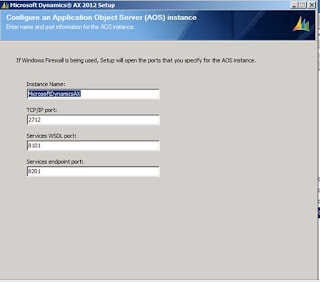
Note - For demo or training purposes, it's ok to go with network service but when you are setting up for pre-prod or production environments, you should choose a proper service account for AOS Account

This is kinda cool as you have the option below to choose the installation type as Developer, Administrator or Business and accordingly it will bring up the workspace for you after the install. At this moment, I'm wearing the administrator hat :-)

All set and ready to go...

You can take a break now ;-) and come back as this step took me good 15-20 mins time!

I love this :-)

And this too.. The Summary Report comes up quite good (This is a new installation feature in 2012 which is a brief summary of the components installed )

Next, you can go ahead with the Compile Checklist.. One other small nice feature which I like is "Processing..." pop up below, it's quite interactive unlike previous versions, where you don't know what's happening and everything looks stuck

Next, I will be posting my experience on other big components of AX2012 starting with Configuring EP, Sharepoint 2010, SSRS and Business Intelligence. Keep looking at this space!! Till then Happy Dax'ing...

Imparted from here