LeaderBoard

Step by Step Guide How to Install Dynamics AX2012 Enterprise Portal

Imparted from here
This is the second post in the series of installing Dynamics AX2012 Components. This post will talk about installing Dynamics AX2012 Enterprise Portal.
The basic pre-requisite for Installing Enterprise Portal is SharePoint 2010 Foundation / SharePoint 2010 Server
Since this is sandpit/training box, I would be just installing SharePoint Foundation 2010.
i. Install the SharePoint 2010 Pre-Requisites shown below

ii. Pre-Requisites Installed Successfully

iii. Now, start with the Foundation Installation

iv. Run the SharePoint Configuration Wizard

v. After all the tasks are completed successfully, you are welcomed to the SharePoint Team site

Installing Dynamics AX2012 Enterprise Portal

i. Now, let's go ahead and install Enterprise Portal Component. Run the setup and click Next

ii. Check the Pre-Requisite Validation runs fine and then move next

iii. Enter the .Net BC Connector Information

iv. Configure the website, I just left the defaults as it is and moved next

v. Move next with the installation

vi. Encountered an error at this step

Looked at the error log file which came up, and found the below logs:

Error: Windows cannot find the local profile and is logging you on with a temporary profile. Changes you make to this profile will be lost when you log off.

Installation completed successfully, but Setup could not create the Enterprise Portal website. You can create the website by running Setup and installing Enterprise Portal again. You can also manually create a website using SharePoint Central Administration.

An error occurred during setup of Enterprise Portal (EP).

Registering tracing manifest file "C:\Program Files\Microsoft Dynamics AX\60\Server\Common\TraceProviderCrimson.man"

WEvtUtil.exe install-manifest "C:\Users\itadmin.PASPALEY\AppData\Local\Temp\tmpA5A1.tmp

**** Warning: Publisher {8e410b1f-eb34-4417-be16-478a22c98916} is installed on

Troubleshooting:

Didn't spent much time on troubleshooting this one as I have seen this error of logging with temporary profile before, but not with EP. The simplest solution which worked for me was to restart the box , login back and run the Enterprise Portal Setup again and that fixed the issue.

Finally, the Role center page arrives :-)... I can recall my pervious experience with  Dynamics AX 4.0 and 2009 version, never I was able to install MOSS and Enterprise Portal at the first go successfully without too many hiccups.

Additional Tip/Note -

Installation of Sharepoint Foundation 2010 Creates a new SQL Server named instance for e.g. In this case TEST-DEMOAX2012/Sharepoint where all sharepoint related databases can be found

Step by Step Guide How to Install Dynamics AX 2012 - Part 1

Imparted  from here

Considerations:
a. Requires more computing power in terms of RAM (As per System Requirements Guide it says 4 GB is the minimum). And from my personal experience, I have seen that AOS service (AX32serv.exe at it's peak, especially when you start the service and bring up the AX Client first time, it goes up close to 1 GB).

b. I also tried the fully loaded image from Partner Source  on a machine which had overall 6GB RAM, allocated 4GB to the VM, but still it was crawling. It took me ages to bring up the AOS Service.

c. Since now the AOD is no longer file based and the models reside in SQL Server, you also need to plan ahead for the disk capacity for your SQL boxes. Standard AX database (Application) along with the model database (AOD) bulks up to 3 GB approx. and if you want Conotoso DB (Demo Data loaded) you should free up at least 10 GB.
Ok, Now I will jump start the installation process starting with installation of Database, AOS and Client Components. I had captured the screenshots along the way as this will help me and my peers when we setup DEV, Test, Pre-Prod and Prod Environments.

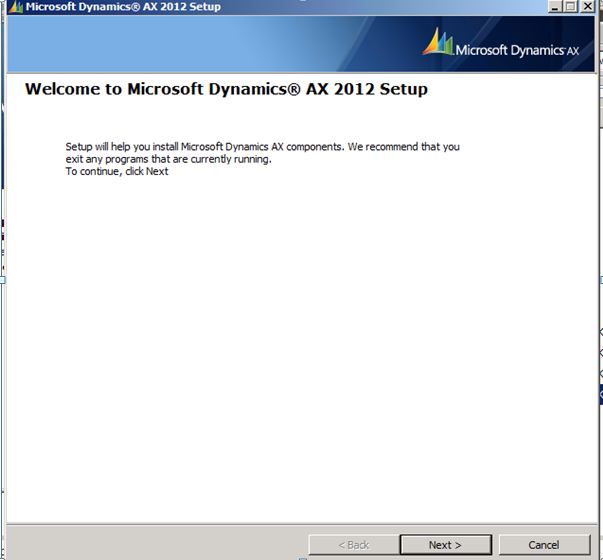
Initial Setup Screen

clip_image001

Pre-Requisite Validation Utility
Note - Here, I'm just installing the components which are checked below: Database, AOS, Client Components, Debugger (My favorite ;-) and Management Utilities
Tip - I would suggest from my personal experience of installing AX, even though Single-Computer Installation sounds easy and quick but we don't get the proper control here, so I prefer Custom Installation and choose my components, easy to troubleshoot and learn as we go

clip_image002

clip_image003

This screen shows you the list of validation errors which means you need to install the base pre-requisites software before you proceed.
The first error shown below is about the SQL Server Full Text Search is not installed or the service is not running

clip_image004

Launch SQL Server Setup and Install Full-Text Search component

clip_image005

Next, comes the Report Viewer Control. You need to download it from herehttp://www.microsoft.com/download/en/details.aspx?id=6442

clip_image006

Some other pre-requisites which needs to be configured and installed are as follows:

· .Net Framework 4.0 http://www.microsoft.com/download/en/details.aspx?displaylang=en&id=17718

· Hotfix for .Net Fx 4.0http://archive.msdn.microsoft.com/KB2390372/Release/ProjectReleases.aspx?ReleaseId=4917 (Select the correct hotfix based on your OS 32-bit or 64-bit)

· Open XML SDK for Microsoft Office http://www.microsoft.com/download/en/details.aspx?displaylang=en&id=5124

· (Tip - Install OpenXMLSDKv2.msi first and then OpenXMLSDKTool.msi, otherwise it spits out error) 

· SQL Server Analysis Management Objects http://go.microsoft.com/fwlink/?LinkId=130655

· VC++ 2008 SP1 Redistributable (x86) http://www.microsoft.com/download/en/details.aspx?displaylang=en&id=5582

· VC++ 2008 SP1 Redistributable (x64) http://www.microsoft.com/download/en/details.aspx?

· VSTO http://go.microsoft.com/fwlink/?LinkId=158918

Please Note, as per the Operating System whether it's Server 2008 or Win 7, it might ask you for some other pre-requisites as well, so I would suggest you run the pre-requisite validator and please don't go by the assumption that the above  links are the ONLY pre-requisites required.
.

clip_image007

clip_image008

Once the Pre-Requisites are installed successfully, you can kick start the Installation

clip_image009

clip_image010

clip_image011

clip_image012

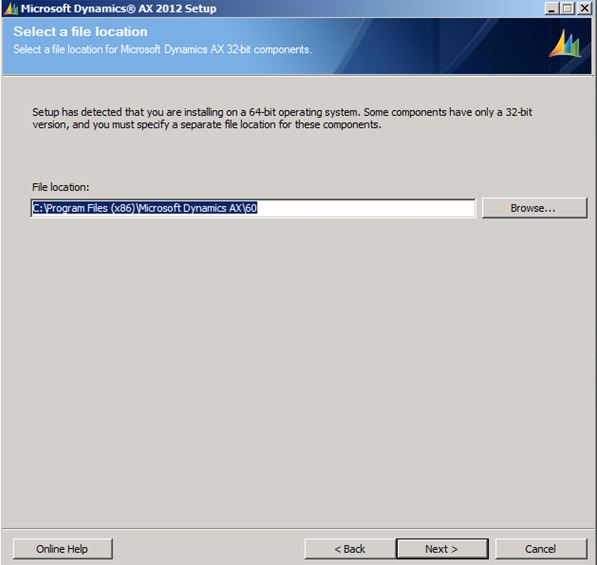
Tip - You can change the location here

clip_image013

clip_image014

clip_image015

Select the Components you want to install, based on your implementation topology you might want to install different components on different boxes. As I'm setting up a Sandbox at the moment, I just installed everything in one box

clip_image016

Didn't thought of much experimenting with Themes so left it as it is.

clip_image017

clip_image018

clip_image019

You can change the database names at this step below if you want to.

clip_image020

clip_image021

Key in the ports for AOS and Services

clip_image022

Note - For demo or training purposes, it's ok to go with network service but when you are setting up for pre-prod or production environments, you should choose a proper service account for AOS Account

clip_image023

This is kinda cool as you have the option below to choose the installation type as Developer, Administrator or Business and accordingly it will bring up the workspace for you after the install. At this moment, I'm wearing the administrator hat :-)

All set and ready to go...

clip_image024

clip_image025

You can take a break now ;-) and come back as this step took me good 15-20 mins time!

clip_image026

clip_image027

I love this :-)

clip_image028

And this too.. The Summary Report comes up quite good (This is a new installation feature in 2012 which is a brief summary of the components installed )

clip_image029

clip_image030

Next, you can go ahead with the Compile Checklist.. One other small nice feature which I like is "Processing..." pop up below, it's quite interactive unlike previous versions, where you don't know what's happening and everything looks stuck

clip_image031

Next post is Configuring EP, SharePoint 2010, SSRS and Business Intelligence.

AX 2009 Misc Charges

Almost all of implementations have the Misc charges and Auto misc charges used in the AR and AP. Recently , I noticed a strange behaviour when i was using this feature in one of the implementation. This is related to the Misc charges with category “Percent”. We will take an example of Misc charge on a purchase transaction to understand the issue
Consider that there is an item on which  a 5 % duty is applicable on the net amount of the purchase. Therefore, consultants would like to utilize the ‘Auto misc charges’ feature for mapping this business requirement.
Let’s first create a Misc charge code e.g. “Duty’ as shown in the following screen shot:
clip_image001[5]
The Misc charge has been created with the following posting setup:
clip_image002[6]
i.e. the cost of the misc charge is to be loaded on the inventory value and offset to a Misc charge suspense account.
You may also notice that the Company currency is USD in the environment in which this simulation is being done. Consider that a Purchase order is raised in EUR on a vendor
clip_image003[6]
Att this stage , if the Duty was configured in the Auto misc charges then it would flow on the lines else we can manually configure a misc charge for the purchase lines that duty of 5% payable in USD ( as we are buying from an overseas vendor in EUR but would pay ‘duty” to customs in USD) . The sales line misc charge would be as follows
clip_image004[4]
Now , when we invoice update the purchase order and see the voucher of the invoice posting
clip_image005[4]
The misc charge amount got calculated 5% of EUR 10,000 as USD 500.  Therefore for those consultants/users who rightly disagree with this logic of calculation , the setup and configuration should be done with the above in mind.
To understand the effect for comparison purpose consider that the same item is bought from a vendor in India and the order is placed in INR. The exchange rate conversion for INR is 1 EUR = INR 80 . Therefore the Purchase order is placed for 5000*80 = INR 400,000.00 . The purchase line is also having the 5% duty as a misc charge .
Follow the steps for processing purchase order and invoice it . Check the invoice and the voucher:
Pls notice that this time the duty paid is USD 2000.00 as against the previous example of USD 500.00 (even that was not correct) .
Can one believe that for the same value of the item in the company currency just by changing the currency of the purchase order we could have ended up paying 4 time the cost of the item as duty?
Apparently Microsoft’s development team is working on this bug and we may hear some fix on the above.
Imparted from Here