LeaderBoard

Dynamics AX: Generating an AIF web service

Now that we have configured the AIF web service in Dynamics AX, we can generate services right from Dynamics AX that will be available for use. Services can be created by developers but Dynamics AX 2009 comes pre-packaged with several services, depending on your licensing scheme. In this section, we will go over the process of generating services.

1. In Dynamics AX, services are specified in the AOT under the Services node.

image
2. To enable the use of the services in the AOT, go to Basic | Setup |Application Integration Framework | Services.

image

3. In the AIF Services form, click on the Refresh button. This may take a while because the form will query Dynamics AX for the available services.

image
4. To choose which services will be available as a web service, select the appropriate service and mark the Enable field.

image
5. Now that the desired services have been selected to be enabled, the next step
is to automatically generate the web services. To generate these services, click
on the Generate button.

image

Specifying the authentication method for an AIF web service

Since an AIF web service is a WCF service, all the same rules apply when it comes to specifying authentication methods and many other settings. Such settings allow
greater flexibility when customizing web services to enhance security, performance, and compatibility. When you generate a web service for the AIF, the default method
for authentication is basicHttpBinding. However, in most scenarios, the binding method for authentication should be wsHttpBinding. For more information on
wsHttpBinding, refer to http://msdn.microsoft.com/en-us/library/ms751418.aspx. To change the authentication binding method, we must edit the configuration
file of a web service that was created when the service was generated.

The following steps describe the process of editing the AIF web service configuration file:
1. In Dynamics AX, go to Basic | Setup | Application Integration Framework| Services to load the Services form.

image

2. Select the service to change the authentication binding method and click on the Configure button. This will load the Microsoft Service
Configuration Editor.

image

Hint: The Microsoft Service Configuration Editor comes with the Microsoft .NET 3.5 Framework SDK or Windows Server 2008 SDK. This must be
installed in order to properly edit the web service configuration. Although you can use a text editor to make modifications to the configuration file,
it is not best practice, nor is it recommended. The configuration editor ensures that configuration settings are properly formatted.

3. In the Microsoft Service Configuration Editor, collapse the Bindings node to view the current binding. Notice that the default binding method is
basicHttpBinding.

image

4. We will need to create a wsHttpBinding method for authentication. To create a new binding, right-click on the Bindings folder and click on New Binding
Configuration…. In the Create a New Binding window that pops up, select wsHttpBinding and click on the OK button.

image
5. A new binding method of type wsHttpBinding, will be created under the Bindings folder. In this example, we will rename it to wsHttpBindingAif.

image

6. Now that we have created an appropriate binding method for an AIF service, we must associate the binding to the service that was generated,
so that it may be used as a binding method. In the Services folder, collapse the appropriate service (for example: Microsoft.Dynamics.
IntegrationFramework.Service.CustomerService) and collapse the Endpoints folder. Select the listed endpoint, and change the Binding
property to wsHttpBinding. Then in the Binding Configuration property, select the wsHttpBindingAif that we created.

image

7. Now that the correct binding is set, close the Microsoft Service Configuration Editor and save the modifications that were made. To ensure
that the settings take immediate effect, open the Windows Command Prompt and run iisreset on the web server.


Setting the appropriate authentication binding method will ensure that developers, external servers, and end users will be able to access the service appropriately.
Additional methods can be implemented to ensure a stronger security implementation such as SSL.

Creating and configuring an AIF website

The processes of installing AIF already explained in another's spots in this blog such Up to this point, the installer will have created and installed the appropriate libraries. However, in Windows Server 2008 and 2008 R2, the permissions and website setup in Dynamics AX may not have completed. The following process is what is required, so that the AIF website is properly set up for use:
• Apply appropriate permissions
• Specify an AIF website
• Generate an AIF web service
• Specifying the authentication method for an AIF web service
• Accessing the AIF web service

Applying appropriate permissions
During the installation of the AIF web service extension in the Installing the AIF web service extension post, a Content directory was specified in step 3. That directory was created to store the AIF web service files. The installation wizard went ahead and automatically created a network share of the folder. However, due to imitations of the installers in a Windows Server 2008 or 2008 R2 environment, the permissions will not work. The AOS will need access to this directory in order to create, modify, or delete AIF services. To allow this functionality, we need to permit the AOS service account to be able to do this. The following steps outline this process:
1. In Windows Explorer, navigate to the Content directory that was specified in step 3 of the Installing the AIF Web Service Extension section (for example: C:\Program Files\Microsoft Dynamics AX\50).

image

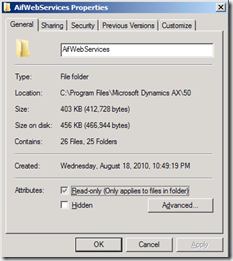
2. Right-click on the AifWebServices folder and go to Properties.
image
2. Go to the Security tab and click on the Edit button to edit the permissions on this directory.

image

Hint: The installer originally created a group Microsoft Dynamics AX Web Service Administrators on the server and assigned the AOS service account as a member of that group.Regardless, you will still have to manually add the AOS service account and apply the appropriate permissions.

3. In the Permission for AifWebServices window, click on the Add… button and then add the AOS service account and click on the OK button.

image
4. Now we must specify the permission level for the AOS services account. In the Permissions for AifWebServices window, ensure that the newly added AOS service account is selected and allow Full Control. When complete,
click on the OK button to save the modifications.

image

Specifying an AIF website
Now that we have applied the appropriate permissions to the AIF web service directory, the AOS will now be able to access and modify the directory and contents. This is necessary if you want to use AIF for web services. When services are created in AX, the AIF will be able to generate standard WCF web services and place them in the Content directory. In this section, we will cover the process of specifying this directory.
1. In Dynamics AX, go to Basic | Setup | Application Integration Framework | Web sites.

image
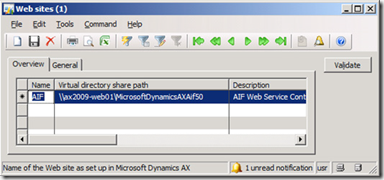
2. In the Web sites form, create a new record and specify the network share location of the AIF Content directory (it may be easier to go into the General tab and browse the folder manually).
image

Hint: The Web sites form automatically validates the directory upon creating  the record. If the validation fails and the record cannot be created, verify that the permissions are correct and that the directory exists and is shared.


3. Now that the record with the AIF Content directory location has been provided, click on the Validate button to ensure that the AOS will be able to access and modify it appropriately. An Infolog window will display whether the validation was successful or not.

image

You can follow up links below for rest of this post:

• Generate an AIF web service
• Specifying the authentication method for an AIF web service
• Accessing the AIF web service